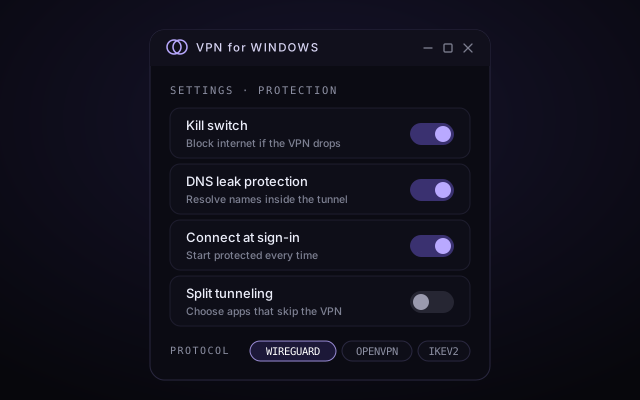
Kill switch
If the tunnel drops (for example when Wi-Fi reconnects), all internet traffic is blocked until protection is back, so your real IP is never exposed by accident.
Recommended: on
What each switch in VPN for WINDOWS does, when to use it, and the settings we recommend.
If the tunnel drops (for example when Wi-Fi reconnects), all internet traffic is blocked until protection is back, so your real IP is never exposed by accident.
Recommended: on
Website name lookups (DNS) go through the encrypted tunnel to the VPN's resolver, instead of to your internet provider in plain view.
Recommended: on
Choose apps that use your normal connection, such as a local printer tool or a game that needs low ping, while everything else stays protected.
Recommended: only when needed
Mark your home network as trusted. On any other network, VPN for WINDOWS connects automatically before your apps start talking.
Recommended: on for laptops
Starts with Windows and connects before you open a browser. The tray icon shows a green tick when you are covered.
Recommended: on
Lets you keep reaching devices at home, like printers, a NAS or a smart TV, while connected. Turn it off on public networks.
Recommended: home only
WireGuard for speed, OpenVPN for networks that block other traffic, and IKEv2 for laptops that hop between Wi-Fi and mobile data.
Recommended: automatic
Lives in the system tray and uses little memory. WireGuard's small codebase also keeps battery drain low on laptops.
Always on
Works fully with the keyboard, follows Windows text scaling and high-contrast themes, and reads out its status to screen readers like Narrator.
Always on
Open Settings → Protection in the app and match this screen. These defaults suit most people.
| Who | Without a VPN | With VPN for WINDOWS |
|---|---|---|
| Your internet provider | Sees every site you connect to | Sees only encrypted traffic to a VPN server |
| Others on public Wi-Fi | Can see sites visited; HTTPS hides page contents | See only encrypted data |
| Websites you visit | See your real IP and approximate location | See the VPN server's IP and location |
| The VPN service | Not involved | Handles your traffic, which is why a no-logs design matters |
| Accounts you sign in to | Know it is you | Still know it is you; a VPN does not change that |
Recommended. Windows 10 22H2 also works.
Runs natively on Intel, AMD and Arm-based PCs.
Plus 200 MB of memory while connected.
Needed only during setup to create the network adapter.
The illustrated guide walks you through setup, step by step.
VPN for WINDOWS