From zero to protected.
Five illustrated steps. No technical knowledge needed. If you prefer the VPN settings already built into Windows, switch to the second tab.
Before you start: sign in to Windows with an administrator account (needed once, for step 1) and make sure you are online. Close any other VPN app, because two VPNs running at the same time usually conflict.
-
Run the setup wizard
Open the VPN for WINDOWS setup file and choose Next through the wizard. When Windows shows a User Account Control prompt asking whether to allow changes, choose Yes. The app needs this once to create its secure network adapter.
NextYesFinish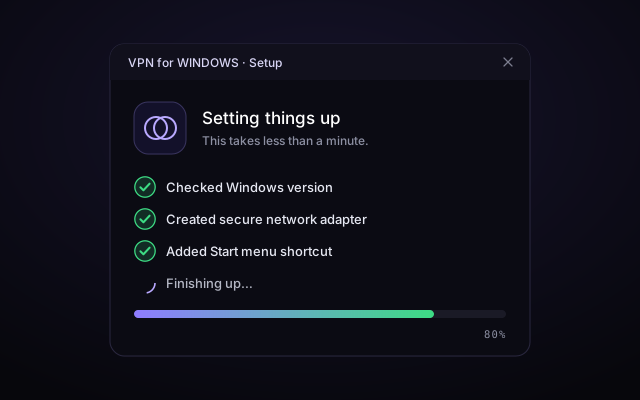
Example · the wizard ticks off each task -
Open the app from Start
Press the Windows key, type VPN for WINDOWS, and press Enter. You can also right-click it and choose Pin to taskbar so it is always one click away.
⊞ WinVPN for WINDOWSEnter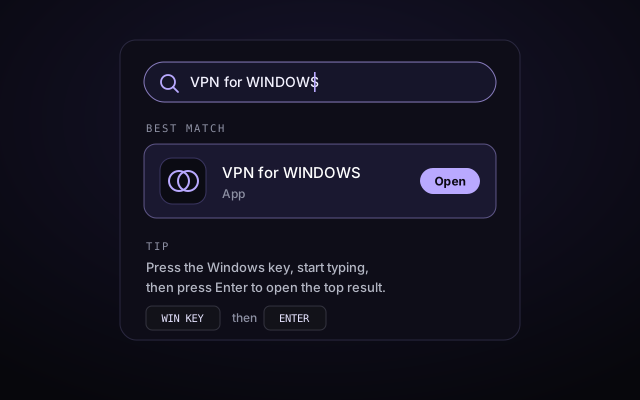
Example · Start menu search -
Choose a server location
Select Location and pick a country or city. For everyday browsing, choose the one closest to you: the lower the ping (in milliseconds), the faster things feel. Pick a different country only when you specifically need to appear there.
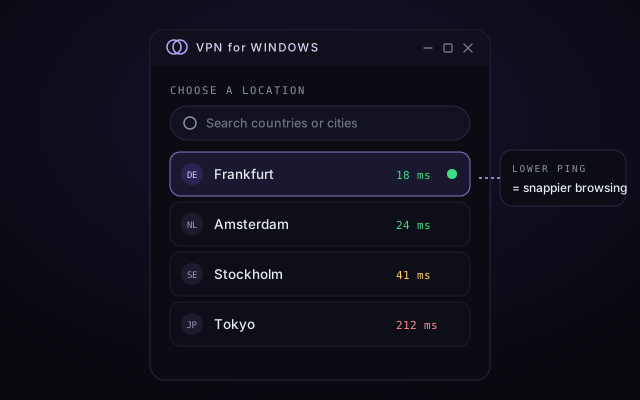
Example · green ping = close and quick -
Press the connect button
Select the large round button. The ring turns lavender while the encrypted tunnel is created, then green when you are connected. A small shield with a tick also appears in the system tray, next to the clock.
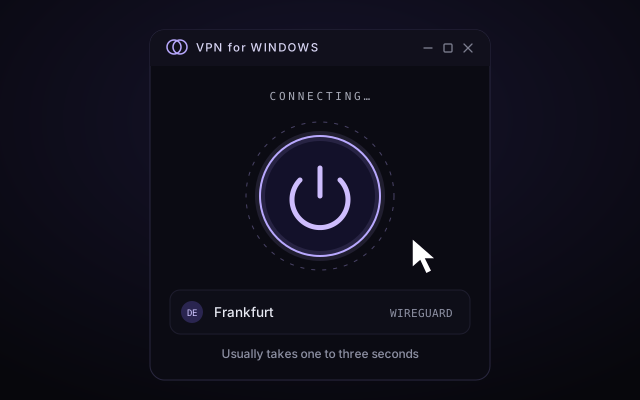
Example · one press, one or two seconds -
Check for four green ticks
The status should read Connected, with ticks for Encrypted, IP hidden, DNS protected and Kill switch. The public IP shown is now the VPN server's address. If any tick is grey, see troubleshooting.
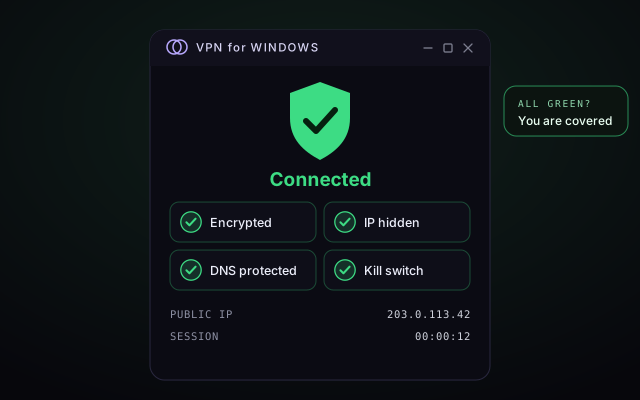
Example · this is what protected looks like
Using the VPN settings inside Windows
Windows has its own VPN client for the IKEv2, SSTP and L2TP/IPsec protocols. Use it when you have been given server details, for example by your workplace. WireGuard and OpenVPN are not part of the built-in client, so for those use the VPN for WINDOWS app.
Windows 11
- Open Start → Settings (or press Win + I).
- Select Network & internet → VPN, then Add VPN.
- Set VPN provider to Windows (built-in).
- Enter a Connection name and the Server name or address you were given.
- Choose the VPN type (for example IKEv2) and the Type of sign-in info, then select Save.
- Back on the VPN page, select Connect next to your new connection. You can also connect from Quick Settings (Win + A).
Windows 10 (22H2)
- Open Start → Settings → Network & Internet → VPN.
- Select Add a VPN connection and fill in the same fields as above.
- Select Save, then pick the connection and choose Connect.
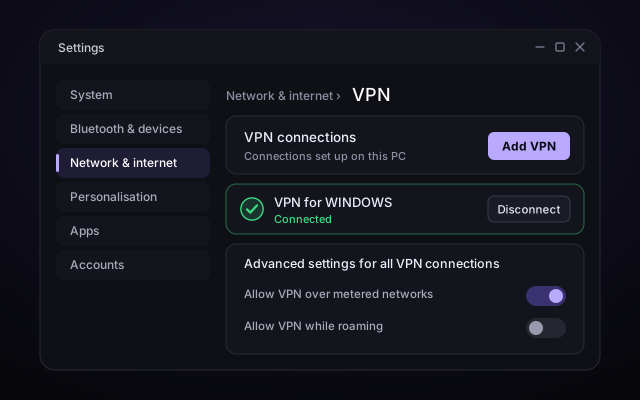
Avoid PPTP. It still appears in the VPN type list, but its encryption has been considered broken for years. Choose IKEv2 wherever you can.
Microsoft stopped regular security updates for Windows 10 on 14 October 2025. A VPN cannot make an unpatched system safe, so moving to Windows 11 is the safest option.
Verify it yourself.
The green ticks are the app's own tests. Tick these off to confirm independently. Your progress is not saved anywhere.
If a tick stays grey.
| What you see | Likely cause | What to do |
|---|---|---|
| Stuck on "Connecting…" | The network is blocking the UDP port that WireGuard uses | Open Settings → Protocol and choose OpenVPN (TCP), which looks like normal web traffic. |
| Connected, but pages will not load | Hotel or café Wi-Fi sign-in page not completed | Disconnect, open any website to finish the Wi-Fi sign-in, then connect again. |
| "DNS protected" is grey | Another app or a custom DNS setting is overriding it | Close other VPN or DNS tools, then turn DNS leak protection off and on again. |
| Everything feels slow | The server is far away or busy | Choose a closer location with a green ping value. |
| A local printer or TV is unreachable | All traffic, including local traffic, goes through the tunnel | Turn on Allow local network access, or add the device's app to Split tunneling. |
| The adapter is missing after a Windows update | The network adapter needs to be refreshed | Open the app's Settings → Repair connection, then restart the PC. |
Still stuck? The FAQ covers more situations.
All green?
You are done.
Want to understand what just happened behind the scenes? Follow the beam.
VPN for WINDOWS